JavaScript Virtual Scrolling Library for Large Lists and Infinite Scroll
This JavaScript hcg-virtual-scroll is a high-performance virtual scrolling library written in pure JavaScript. Instead of rendering every item in your list, it only keeps the visible rows in the DOM at any time. Whether your list has 1,000 items or 1,000,000 items, the page stays fast and the scrollbar behaves naturally.
No framework required. No dependencies. Works with any plain JavaScript array.
Table of Contents
What Is hcg-virtual-scroll?
hcg-virtual-scroll is a lightweight vanilla JavaScript library for virtual scrolling - rendering only the rows currently visible in a scroll container plus a small buffer. Pass an array of data and a renderItem function; the library handles scroll position math, phantom height, DOM recycling, and callbacks - without React, Vue, or any other dependency.
It works with plain div, ul, ol, and table containers, supports fixed or variable row heights, and scales to 1,000,000 or more items without freezing the page. Because it is plain JavaScript, you can drop it into any project - including ones built with React, Vue, or no framework at all.
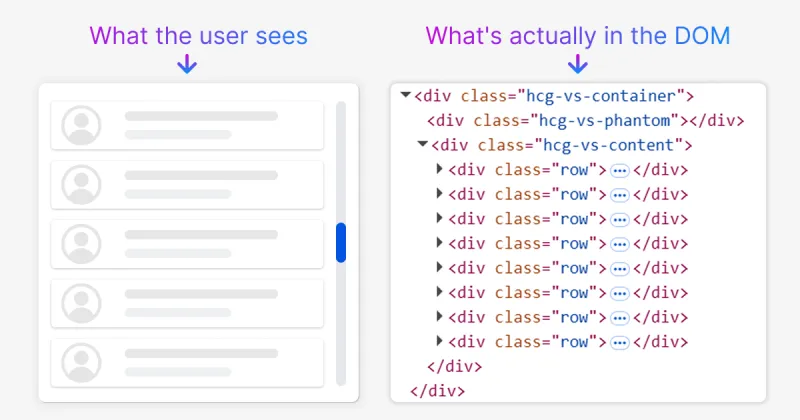
Why Use hcg-virtual-scroll
Rendering thousands of DOM nodes makes pages slow. Virtual scrolling solves this by keeping the DOM small while the scroll bar still reflects the full dataset size.
- Zero dependencies - one JS file and one CSS file; CommonJS and browser global, no build step required.
- Massive lists - 1,000,000+ items without UI freeze; only visible rows stay in the DOM.
- Fixed and dynamic heights - uniform rows or per-item height functions.
- DOM recycling - reuse nodes via
keyFieldto preserve checkbox and input state. - Infinite scroll -
onReachEnd+append()for paginated loading. - Chat / reverse mode - anchor to the bottom with
reverse: trueandprepend(). - Tables - render each row as a mini-table with a sticky header above the scroll container.
- Live updates -
updateData(),updateConfig(), andrefresh()without re-creating the instance. - Adaptive overscan - buffer grows automatically during fast scrolling.
- Resize-aware - re-renders when the container resizes (ResizeObserver).
- Accessible -
role="list"/role="listitem"and optionalariaLabel.
Live Demo
Scroll through 10,000 items below. Only the visible rows exist in the DOM at any time, open your browser DevTools and inspect the list while scrolling to see it in action. see the See the full interactive demo page.
Comparison with Alternatives
Most popular virtual scrolling libraries are tied to a specific framework. hcg-virtual-scroll takes the opposite approach: it is plain JavaScript, so it works in React, Vue, Svelte, or no framework at all, with the same API everywhere.
| Feature | hcg-virtual-scroll | Render all rows | React-only libraries |
|---|---|---|---|
| Dependencies | None | None | React required |
| DOM nodes at scroll | ~20-40 (visible + buffer) | All rows | ~20-40 |
| 100,000+ rows | Smooth | Browser hangs | Smooth (with React) |
| Vanilla JS / script tag | Yes | Yes | No |
| Dynamic row heights | Yes (pre-calculated) | Yes | Yes |
| DOM node recycling | Yes (keyField) | n/a | Varies |
| Infinite scroll | Yes (append / onReachEnd) | Manual | Varies |
| Reverse / chat mode | Yes | Manual | Varies |
| Runtime config changes | Yes (updateConfig) | Manual | Varies |
Installation
Source code and package:
Basic usage
Create a scroll container, pass your data array, and provide a renderItem function that returns HTML or a DOM element for each row.
Features
hcg-virtual-scroll Features:
- Zero dependencies - plain JavaScript, works with a script tag or bundler.
- Fixed and dynamic heights - number or per-item function with estimated fallback.
- Phantom scroll area - full scroll range without rendering every row.
- Height compression - handles extremely tall virtual lists via
maxHeight. - Adaptive overscan - buffer expands during fast scrolling.
- DOM recycling -
keyFieldreuses nodes to preserve state. - Infinite scroll -
onReachEnd,append(), duplicate-request guard. - Reverse mode - bottom-anchored lists for chat and activity feeds.
- History loading -
onReachStart+prepend()for older items. - Live data updates -
updateData(),refresh(),clear(). - Runtime reconfiguration -
updateConfig()without re-creating the instance. - Empty and loading states - built-in placeholders via
emptyText/loadingText. - Scroll API -
scrollTo(),scrollToTop(),scrollToBottom(). - ResizeObserver - re-renders when the container resizes.
- Accessible markup - list roles and optional
ariaLabel.
Options
Callbacks
All callbacks are optional. Pass them as properties of the options object when creating the instance, or add them later with updateConfig.
| Callback | Fired when | Arguments |
|---|---|---|
onScroll | On every scroll event (via rAF). | scrollTop, { start, end } |
onVisibleRangeChange | When the rendered index range changes. | { start, end, rawStart, rawEnd } |
onRender | After each render pass completes. | { start, end } |
onReachEnd | User scrolls within reachEndThreshold items of the end. Resets when scrolling back up. | { start, end, total } |
onReachStart | User scrolls to the top (history loading in reverse mode). | { start, end, total } |
onResize | Container size changes (ResizeObserver). | { width, height } |
Instance methods
Methods available on the instance returned by new HCGVirtualScroll(data, options).
Working With Your Data
HCGVirtualScroll accepts any plain JavaScript array. There are no required field names, no special format, and no conversion needed. Whatever your data looks like, just pass it in and access the fields inside renderItem.
Supported Container Types
Common Use Cases
Performance Benchmarks
The whole point of virtual scrolling is that cost stays flat as your list grows. Because only the visible rows plus a small buffer ever exist in the DOM, a list of 1,000 items and a list of 1,000,000 items hold the same number of elements - so memory and frame rate stay constant while a normal list degrades sharply.
The figures below use the default demo config (itemHeight: 50, bufferSize: 3, a ~400px container showing about 8 rows). DOM node counts reflect the live demo; memory and frame rate are representative of simple text rows on a mid-range laptop and will vary with row complexity.
| List size | Normal list (all rows in DOM) | hcg-virtual-scroll | DOM nodes held |
|---|---|---|---|
| 1,000 | ~1,000 nodes, smooth | smooth, ~60 FPS | ~14 |
| 10,000 | ~10,000 nodes, sluggish | smooth, ~60 FPS | ~14 |
| 100,000 | freezes or may crash the tab | smooth, ~60 FPS | ~14 |
| 1,000,000 | tab crashes | smooth, ~60 FPS | ~14 |
Why the node count stays at ~14: the library renders only the visible rows (about 8 for a 400px container at 50px each) plus bufferSize rows above and below (3 + 3=6). Increasing the list size adds zero DOM nodes - it only changes the height of the internal spacer that drives the scrollbar.
Render throttling: scroll updates are batched to one render per animation frame (requestAnimationFrame), which is what keeps scrolling at a steady 60 FPS rather than firing a render on every scroll pixel.
See It in Action: Only Visible Rows in the DOM
This recording scrolls a 100,000-row table with the browser DevTools open. As the list scrolls, watch the element count stay at around 14 - the library only ever keeps the visible rows plus a small buffer in the DOM, no matter how large the list is.
Want to verify on your own machine? Open the live demo, open your browser DevTools, and watch the DOM node counter stay flat as you scroll a 100,000-row table.
Empty State
When the list has no items, the library renders the empty state inside the content area automatically. This happens on initial render with an empty array, after clear(), and after updateData([]).
If neither emptyText nor emptyHTML is set, the content area is left blank when the list is empty - matching the original behaviour.
Loading State
Call showLoading() before fetching data and hideLoading() when the data is ready. While loading is active, scroll events and re-renders are paused.
const vs = new HCGVirtualScroll([], {
  container:   '#fetch-data',
  itemHeight:  56,
  loadingText: 'Fetching data...',
  emptyText:   'No results found',
  renderItem:  item => `<div class="row">${item.title}</div>`,
});

vs.showLoading();

fetch('https://jsonplaceholder.typicode.com/posts')
  .then(res => res.json())
  .then(data => {
    vs.updateData(data);
    vs.hideLoading();
});Use loadingHTML for a custom spinner:
const vs = new HCGVirtualScroll([], {
  container:   '#fetch-data',
  itemHeight:  56,
  loadingHTML: `<div class="my-spinner">
                  <div class="spinner-icon">⏳</div>
                  <p>Loading, please wait...</p>
                </div>`,
  renderItem:  item => `<div class="row">${item.name}</div>`,
});
vs.showLoading();
The default loading text is wrapped in .hcg-vs-loading for styling:
.hcg-vs-loading {
  display: flex;
  align-items: center;
  justify-content: center;
  height: 100%;
  color: #999;
  font-size: 0.95rem;
}
Render priority - loading takes priority over empty:
showLoading() active  →  loading content is shown
items.length === 0    →  empty state is shown
items.length > 0      →  normal virtual scroll
Check the current state with isLoading():
if (!vs.isLoading()) {
  vs.append(newItems);
}
How showLoading and hideLoading Work Together
While showLoading() is active, all rendering is paused. Scroll events, resize events, and any internal render calls are blocked until hideLoading() is called. This prevents blank or incomplete content from flashing on screen while data is still being fetched.
updateData() can be called while loading is still active, it stores the new data internally even though the render is paused. When hideLoading() is called, the list renders immediately with the correct data already in place.
Always call updateData() before hideLoading(). Calling hideLoading() first causes the empty state to appear for a brief moment before the data renders.
Correct order:
vs.showLoading();

fetch('/api/items')
  .then(res => res.json())
  .then(data => {
    vs.updateData(data);  // store data first
    vs.hideLoading();     // then reveal
  });
Wrong order. causes empty state flicker:
vs.hideLoading();   // renders with no data - empty state appears
vs.updateData(data); // renders again with real data
Virtual Scrolling Tables
For table layouts, the scroll container must be a div wrapper around the table - not the table or tbody element itself. Place a sticky thead inside the table, then render the virtual rows into a sibling div below it using table-layout: fixed to keep columns aligned.
Why not one big
<tbody>? The library positions rows with an internal spacer and a transform, which requires plain block elements that are not valid inside a<table>or <tbody>. Rendering each row as its own small table keeps valid markup, aligns columns throughtable-layout: fixed, and supports the full 1,000,000+ row range. If you do not need native table behavior, a div or CSS grid layout is even simpler.
<div class="vs-table-wrap">
  <div class="vs-table-inner">
    <div id="tableHeader">
      <table>
        <thead>
          <tr>
            <th class="col-id">ID</th>
            <th>Name</th>
            <th>Email</th>
            <th class="col-status">Status</th>
          </tr>
        </thead>
      </table>
    </div>
    <div id="tableScroll" style="height:400px;overflow-y:auto;"></div>
  </div>
</div>.vs-table-wrap {
overflow-x: auto;
-webkit-overflow-scrolling: touch;
border: 1px solid #e5e7eb;
border-radius: 8px;
}
.vs-table-inner {
min-width: 520px;
}
#tableHeader {
width: 100%;
box-sizing: border-box;
background: #f9fafb;
border-bottom: 2px solid #e5e7eb;
}
#tableHeader table,
#tableScroll .hcg-vs-item > table {
width: 100%;
border-collapse: collapse;
table-layout: fixed;
box-sizing: border-box;
}
#tableHeader th,
#tableScroll .hcg-vs-item td {
padding: 10px 14px;
overflow: hidden;
text-overflow: ellipsis;
white-space: nowrap;
}
#tableHeader th.col-id,
#tableScroll .hcg-vs-item td.col-id { width: 80px; color: #999; }
#tableHeader th.col-status,
#tableScroll .hcg-vs-item td.col-status { width: 110px; font-weight: 600; }
@media (max-width: 600px) {
.vs-table-inner { min-width: 480px; }
}function syncHeader() {
const list = document.getElementById('tableScroll');
const header = document.getElementById('tableHeader');
if (!list || !header) return;
header.style.paddingRight = (list.offsetWidth - list.clientWidth) + 'px';
}
const STATUSES = ['Active', 'Inactive', 'Pending'];
const users = Array.from({ length: 100000 }, (_, i) => ({
id: i + 1,
name: `User ${i + 1}`,
email: `user${i + 1}@example.com`,
status: i % 4 === 0 ? 'Inactive' : 'Active',
}));
const vs = new HCGVirtualScroll(users, {
container: '#tableScroll',
itemHeight: 44,
keyField: 'id',
renderItem(item) {
const color = item.status === 'Active' ? '#16a34a' : '#dc2626';
return `<table><tr>
<td class="col-id">${item.id}</td>
<td>${item.name}</td>
<td>${item.email}</td>
<td class="col-status" style="color:${color}">${item.status}</td>
</tr></table>`;
},
onResize() { syncHeader(); },
});
syncHeader();
window.addEventListener('resize', syncHeader);Column alignment: Use table-layout: fixed with matching width values on both the header <th> cells and each row's <td> cells. That is what keeps every column lined up with the header as you scroll.
Live Config Hot-Swap
Change any option at runtime without destroying and recreating the instance.
const vs = new HCGVirtualScroll(data, {
  container:  '#hotList',
  itemHeight: 56,
  renderItem: renderDefault,
});

// Change item height
vs.updateConfig({ itemHeight: 80 });

// Swap render function
vs.updateConfig({ renderItem: renderCompact });

// Change buffer size and disable adaptive overscan
vs.updateConfig({ bufferSize: 8, adaptiveOverscan: false });

// Attach a new callback
vs.updateConfig({ onReachEnd: loadMore });

// Change threshold
vs.updateConfig({ reachEndThreshold: 15 });
Dynamic Item Heights
Pass a function to itemHeight to support rows of different heights.
const posts = Array.from({ length: 5000 }, (_, i) => ({
  id:    i,
  title: `Post #${i}`,
  body:  i % 3 === 0 ? 'Short post.' : 'A much longer post body that wraps to multiple lines and needs more space to render properly.',
  // pre-calculate height so the library can build positions
  height: i % 3 === 0 ? 60 : 100,
}));

const vs = new HCGVirtualScroll(posts, {
  container: '#dynamic-height',
  itemHeight: item => item.height,	// function returning height per item
  estimatedItemHeight: 80,			// fallback if function returns 0 / falsy

  renderItem(item) {
    return `<div style="padding:12px 16px;border-bottom:1px solid #eee;box-sizing:border-box;">
      <div style="font-weight:600">${item.title}</div>
      <div style="font-size:.85rem;color:#666;margin-top:4px">${item.body}</div>
    </div>`;
  },
});Tip: Pre-calculate heights on your data objects. Avoid measuring DOM height during renderItem - that causes layout thrash.
Using With React, Vue, and Svelte
hcg-virtual-scroll is framework-agnostic. It manages its own DOM inside the container element, so in any framework the pattern is the same: create the instance when the element mounts, push new data when it changes, and call destroy() when the component unmounts.
Browser Support
Core virtual scrolling works in all modern browsers and Internet Explorer 11 and above. The ResizeObserver feature (automatic re-render on container resize) is supported in Chrome 64+, Firefox 69+, Safari 13.1+, and Edge 79+. For older environments, a ResizeObserver polyfill covers the only modern API used.
Troubleshooting
The list is blank or rows overlap
This almost always means the itemHeight value does not match the real height of your rows. Set itemHeight to the exact pixel height each row renders at. If your rows have padding or borders, include those in the height, or set box-sizing: border-box on the row element.
The scroll box shows a blank area when there is no data
If you pass an empty array and do not set the emptyText or emptyHTML option, the scroll box renders nothing - it shows a blank area. This is the default behaviour: the library stays silent so it never displays a message you did not ask for.
const vs = new HCGVirtualScroll([], {
  container:  '#myList',
  itemHeight: 50,
  emptyText:  'No data available',
  renderItem: function (item) {
    return '<div class="row">' + item.name + '</div>';
  }
});
The empty message is wrapped in an element with the class hcg-vs-empty, which you can style. When you later load data with updateData(), the message is replaced by the rendered rows automatically.
Checkboxes or inputs reset after scrolling
The library reuses DOM nodes only while they remain inside the buffer. When a row scrolls far out of view, its element is removed, and a new one is created when it scrolls back. Store the state on the data object (for example item.checked) and read it back inside renderItem so the state is restored on every render.
Scrolling shows empty gaps during fast scrolling
Increase the bufferSize option to render more rows above and below the viewport. The default is 3. A value of 5 to 8 reduces blank flashes on very fast scrolling. Adaptive overscan is enabled by default and already increases the buffer automatically during fast scrolls.
Variable-height rows jump or misalign
Pre-calculate a height value on each data object and return it from the itemHeight function. Do not measure DOM height inside renderItem - that causes layout thrashing and incorrect positions. Set estimatedItemHeight as a fallback.
Updated data does not appear on screen
If you mutate item data in place while using keyField, currently visible recycled rows are not refreshed automatically. Call refresh() after the change, or push the change through updateData() which always forces a fresh render.
Loading indicator stays on screen
The render is paused while the loading state is active. Always call updateData() before hideLoading() so the data is in place when rendering resumes. Calling hideLoading() first causes the empty state to flash before the data appears.
"Class constructor cannot be invoked without new" error
You called HCGVirtualScroll(...) without the new keyword. Always create the instance with new HCGVirtualScroll(...).
Duplicate key warning in the console
When keyField is set, every item must have a unique value for that field. A duplicate value triggers a one-time console warning and can cause DOM recycling to bind the wrong row. Make sure your key values are unique across the whole dataset.
FAQ
What is hcg-virtual-scroll?
hcg-virtual-scroll is a high-performance virtual scrolling library written in pure JavaScript. Instead of rendering every item in a list, it keeps only the visible rows in the DOM, allowing lists with 1,000,000 or more items to scroll smoothly without freezing the page.
Why should I use virtual scrolling?
Rendering thousands of DOM elements at once slows down the browser and uses large amounts of memory. Virtual scrolling renders only the items currently visible in the viewport, keeping the DOM small, memory low, and scrolling smooth even on low-end devices.
Does hcg-virtual-scroll require a framework?
No. It is written in vanilla JavaScript with zero dependencies. It works with plain div, ul, ol, and table containers and does not require React, Vue, or any build step.
Can I use hcg-virtual-scroll with React, Vue, or Svelte?
Yes. Because it manages its own DOM, you create the instance when the component mounts (useEffect in React, onMounted in Vue, onMount in Svelte), call updateData when the data changes, and call destroy() when the component unmounts. Row content is returned as an HTML string from renderItem rather than JSX or a template, and row clicks are handled with event delegation on the container.
My checkboxes lose their state after scrolling. How do I fix it?
Store the state as a property on each data object, for example item.checked, and read it back inside renderItem. The library reuses DOM nodes only while they stay in the buffer, so state must live on the data to survive items scrolling out of view.
Why is my list blank or items overlap?
The most common cause is an itemHeight value that does not match the actual rendered row height. Set itemHeight to the exact pixel height of your rows, and for variable heights pre-calculate a height value on each data object.