JavaScript Context Menu and Dropdown Menu Library
Build custom right-click context menus and click dropdown menus with hcg-context-menu, a lightweight vanilla JavaScript library. The menu supports submenus, keyboard navigation, viewport-aware positioning, and menu items from JavaScript arrays or existing HTML.
Use it for editor actions, dashboard menus, file lists, navigation buttons, admin tools, and any interface that needs a clean custom menu without jQuery or framework dependencies.
Table of Contents
What is hcg-context-menu?
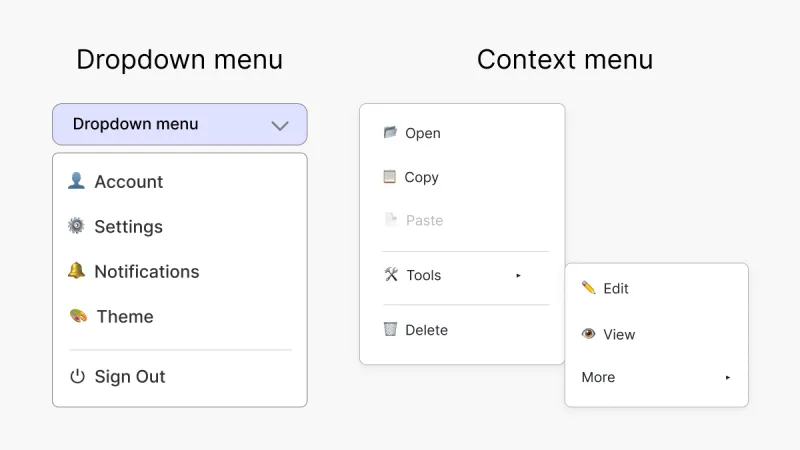
hcg-context-menu is a lightweight vanilla JavaScript library for creating custom right-click context menus and click dropdown menus. It lets you add menu items, icons, disabled states, separators, headers, nested submenus, keyboard navigation, and viewport-aware positioning without jQuery or any framework.
You can define menus with a JavaScript array, generate them dynamically, or build them from existing HTML markup.
Why use hcg-context-menu
Most context menu scripts are either tied to a framework or ship with a lot of styling you have to override. hcg-context-menu stays out of your way and focuses only on the menu behaviour.
- Zero dependencies - one JS file and one CSS file, nothing else.
- Two ways to define items - a JavaScript array or existing HTML markup.
- Smart positioning - flips at the viewport edges so the menu is never cut off.
- Nested submenus to any depth, with hover and click open.
- Keyboard and screen reader friendly with arrow key navigation and ARIA roles.
- Dark mode out of the box using prefers-color-scheme.
- Tiny footprint and works in every modern browser.
Demo
Try both menu types below: right-click inside the demo area to open a context menu, or click the button to open a dropdown menu. The examples show icons, disabled items, separators, nested submenus, and automatic positioning.
Context menu (mode: "context")
Right-click inside the box below to open the menu at the pointer. On a touch device, press and hold.
Dropdown menu (mode: "dropdown")
Click the button below to open the menu just beneath it.
Comparison Table
How hcg-context-menu compares with common alternatives.
| Feature | hcg-context-menu | jQuery contextMenu | Hand-coded menu |
|---|---|---|---|
| Dependencies | None | jQuery | None |
| File size | Small (one JS + one CSS, no library) | Plus jQuery (~90 KB min) | Varies |
| Nested submenus | Yes | Yes | Manual |
| Viewport flipping | Yes | Yes | Manual |
| Keyboard navigation | Yes | Partial | Manual |
| ARIA roles | Yes | Partial | Manual |
| HTML or array items | Both | Array | HTML |
| Dropdown mode | Yes | Plugin | Manual |
| Dynamic items | Yes | Partial | Manual |
| Mobile touch (long-press) | Yes | No | Manual |
| Dark mode | Built in | No | Manual |
| License | MIT | MIT | - |
Installation
Install hcg-context-menu with npm for bundled projects, or include the JavaScript and CSS files directly in a browser page. Both methods work without jQuery or any framework dependency.
Code links:
Node.js Usage
Use npm when your project uses a bundler such as Vite, Webpack, Rollup, Parcel, or another build tool.
npm install hcg-context-menuThe library also works as a CommonJS module if you use a bundler.
// CommonJS
const hcgContextMenu = require("hcg-context-menu");

// ES Modules
import hcgContextMenu from "hcg-context-menu";
import "hcg-context-menu/hcg-context-menu.css";
Vanilla JavaScript Browser Usage
For a plain HTML page, download the two files and include the stylesheet in the document head and the script before the closing body tag.
<link rel="stylesheet" href="hcg-context-menu.css">
<script src="hcg-context-menu.js"></script>
Basic Usage
Call hcgContextMenu() with a target element and an items array.
<div id="my-area" style="border:2px dashed #ccc;padding:60px;text-align:center;">
	Right-click anywhere in this box show context menu
</div>hcgContextMenu({
target: "#my-area",
items: [
{ label: "Copy", action: function (ctx) { console.log(ctx); } },
{ label: "Paste", disabled: true },
{ separator: true },
{ label: "Delete", action: function () { /* ... */ } }
]
});Context menu mode
The default mode. The menu opens at the mouse pointer on right click, and on a touch long-press on mobile. You can leave out the mode option since "context" is the default.
<button id="context-menu">Right click context menu</button>hcgContextMenu({
target: "#context-menu",
mode: "context",
items: [
{ label: "Cut", action: function () { /* ... */ } },
{ label: "Copy", action: function () { /* ... */ } },
{ label: "Paste", action: function () { /* ... */ } }
]
});Dropdown menu mode
Set mode: "dropdown" to open the menu below the target element on a normal left click. This is ideal for buttons and navigation menus. When there is not enough room below, the menu automatically flips above the element so it stays in view.
<button id="menu-button">Dropdown</button>hcgContextMenu({
target: "#menu-button",
mode: "dropdown",
items: [
{ label: "Profile", action: function () { /* ... */ } },
{ label: "Settings", action: function () { /* ... */ } },
{ separator: true },
{ label: "Sign out", action: function () { /* ... */ } }
]
});You can also build the menu from an existing unordered list using the source option.
<ul id="my-menu">
  <li data-hcg-icon="✏️" data-hcg-value="edit">Edit</li>
  <li data-hcg-value="copy">Copy</li>
  <li class="hcg-context-menu-separator"></li>
  <li data-hcg-value="paste" data-hcg-disabled>Paste</li>
</ul>

<div id="my-area" style="border:2px dashed #ccc;padding:60px;text-align:center;">
	Right-click
</div>hcgContextMenu({
target: "#my-area",
source: "#my-menu",
onSelect: function (item) { console.log(item.value); }
});HTML markup source - attribute reference
When you use the source option, the menu is built from an unordered list. The source element must be a <ul> (or an element that contains one). Each direct <li> becomes one menu item, and the attributes or classes you put on the <li> decide what kind of item it is. The original list is hidden automatically.
| Attribute / class on <li> | Required | Purpose |
|---|---|---|
| (text content) | Yes, for normal items | The text inside the <li> becomes the item label. |
| data-hcg-label | Optional | Overrides the label text. Useful when the <li> also contains a nested list. |
| data-hcg-icon | Optional | Icon, emoji, or HTML entity shown before the label. |
| data-hcg-value | Optional | Value passed to the onSelect callback so you can tell which item was clicked. |
| data-hcg-disabled | Optional | Marks the item as disabled (greyed out, not clickable). |
| class="hcg-context-menu-separator" or data-hcg-separator | Optional | Renders a divider line. The <li> should be empty. |
| class="hcg-context-menu-header" or data-hcg-header | Optional | Renders a non-clickable section heading. The text (or the data-hcg-header value) is used as the label. |
| nested <ul> | Optional | Turns the item into a submenu. Put another <ul> with its own <li> items inside the <li>. |
No attribute is strictly required - a plain <li>Copy</li> is a valid clickable item using its text as the label. Add data-hcg-value when you need to identify the item in onSelect.
Note: per-item action functions are only available with the JavaScript array form. With the HTML markup source you handle clicks through the onSelect callback, usually by reading item.value.
Full markup example using every item type:
<ul id="full-menu">
<li class="hcg-context-menu-header">Edit</li>
<li data-hcg-icon="✂" data-hcg-value="cut">Cut</li>
<li data-hcg-icon="📋" data-hcg-value="copy">Copy</li>
<li data-hcg-value="paste" data-hcg-disabled>Paste</li>
<li class="hcg-context-menu-separator"></li>
<li data-hcg-icon="🔗" data-hcg-label="Share">Share
<ul>
<li data-hcg-value="email">Email</li>
<li data-hcg-value="link">Link</li>
</ul>
</li>
</ul>
<div id="my-area" style="border:2px dashed #ccc;padding:60px;text-align:center;">
Preview
</div>hcgContextMenu({
target: "#my-area",
source: "#full-menu",
onSelect: function (item) { console.log("clicked:", item.value); }
});Dynamic items
Pass a function instead of an array to build the menu fresh on every open. The context object tells you which element was clicked, so you can show a different menu per target.
hcgContextMenu({
  target: "#board",
  items: function (ctx) {
    if (ctx.target.classList.contains("card")) {
      return [
        { header: "Card" },
        { label: "Edit",   action: function () { /* ... */ } },
        { label: "Delete", action: function () { /* ... */ } }
      ];
    }
    return [{ label: "New card", action: function () { /* ... */ } }];
  }
});
Menu Item Types
Each entry in the items array is an object. The fields you set decide what kind of item it becomes. The same items can also be written as HTML when you use the source option.
Features
hcg-context-menu Features:
- Context or dropdown mode - right-click context menu or click dropdown.
- Array or HTML items - choose whichever fits your project.
- Dynamic items - pass a function to build the menu per target on every open.
- Section headers - non-clickable labels to group related items.
- Mobile long-press - opens the menu on touch devices.
- Scrollable menus - set a maxHeight for long item lists.
- Open animation - subtle fade and scale, with reduced-motion support.
- Nested submenu to any depth with automatic left flip.
- Icons, disabled items and separators for rich menus.
- Viewport aware positioning that never spills off screen.
- Keyboard navigation with arrow keys, Enter, Space and Escape.
- Accessibility with menu, menuitem and separator ARIA roles.
- Auto close on outside click, Escape, scroll, resize and blur.
- Dark mode theme using the prefers-color-scheme media query.
Using with React
Create the menu inside a useEffect hook and close it in the cleanup function.
import { useEffect, useRef } from "react";
import hcgContextMenu from "hcg-context-menu";
import "hcg-context-menu/hcg-context-menu.css";

function Editor() {
  const areaRef = useRef(null);
  const menuRef = useRef(null);

  useEffect(() => {
    menuRef.current = hcgContextMenu({
      target: areaRef.current,
      items: [
        { label: "Copy",   action: () => console.log("copy") },
        { label: "Delete", action: () => console.log("delete") }
      ]
    });
    return () => menuRef.current.destroy();
  }, []);

  return <div ref={areaRef}>Right-click me</div>;
}
Options Reference
hcg-context-menu Options Reference:
| Option | Type | Default | Description |
|---|---|---|---|
| target | String or Element | document | Element that triggers the menu. Accepts a selector or a DOM node. |
| items | Array or Function | [] | Array of menu item objects, or a function (ctx) that returns the array. A function rebuilds the menu on every open so you can change items based on what was clicked. |
| source | String or Element | null | Existing unordered list to build the menu from when no items array is given. |
| mode | String | "context" | "context" opens the menu at the pointer on right click. "dropdown" opens it below the element on a left click, and flips above the element when there is no room below. |
| longPress | Boolean | true | Open the menu with a touch long-press on mobile devices. Only applies to context mode. |
| longPressDelay | Number | 500 | Milliseconds to hold before a long-press opens the menu. |
| maxHeight | Number or String | null | Maximum panel height before it scrolls. A number is treated as pixels, a string is used as is (for example "50vh"). |
| animation | Boolean | true | Fade and scale the menu when it opens. Automatically disabled when the user prefers reduced motion. |
| className | String | "" | Extra class added to the root element for custom styling. |
| onOpen | Function | null | Called when the menu opens, receives the context object. |
| onSelect | Function | null | Called when an item is selected, receives the item and context. |
| onClose | Function | null | Called when the menu closes. Receives a reason: "select" or "dismiss". |
Item fields
| Field | Type | Description |
|---|---|---|
| label | String | Plain text shown for the item. HTML is escaped and not rendered. |
| html | String | Trusted HTML markup for the item label, rendered as is. Use instead of label when you need formatting. Only pass content you control - it is not escaped. |
| header | String | Renders a non-clickable section heading instead of a normal item. |
| icon | String | Optional icon, emoji or HTML entity shown before the label. |
| value | String | Optional value returned in the onSelect callback. |
| action | Function | Function run when the item is clicked. |
| disabled | Boolean | Greys out the item and blocks interaction. |
| separator | Boolean | Renders a divider line instead of a clickable item. |
| submenu | Array | Array of child items that opens as a submenu. |
Instance Methods
The factory returns a menu instance with the following methods.
A static helper closes every open menu at once.
hcgContextMenu.closeAll();Opening the Menu Programmatically
Keep the returned instance and call open() yourself, for example from a custom button.
const menu = hcgContextMenu({
  items: [
    { label: "Rename", action: () => rename() },
    { label: "Remove", action: () => remove() }
  ]
});

document.querySelector("#more").addEventListener("click", function (e) {
  const r = e.currentTarget.getBoundingClientRect();
  menu.open(r.left, r.bottom, e);
});
Events
Events are exposed as callback options on the menu.
| Event | Fired when | Arguments |
|---|---|---|
| onOpen | The menu is opened. | context |
| onSelect | An item is clicked. | item, context |
| onClose | The menu is closed. | reason |
The context object contains the cursor position and the element that was clicked. The onClose callback receives a reason of "select" when an item was chosen, or "dismiss" when the menu was closed another way (outside click, Escape, scroll or blur).
hcgContextMenu({
  target: "#area",
  onOpen:   function (ctx) { console.log("opened at", ctx.x, ctx.y); },
  onSelect: function (item, ctx) { console.log(item.label, ctx.target); },
  onClose:  function (reason) { console.log("closed:", reason); }, // "select" or "dismiss"
  items: [ /* ... */ ]
});
Handling Clicks in One Place
You do not have to give every item its own action function. Instead you can leave the items as plain labels (optionally with a value) and handle all clicks in a single onSelect callback, then branch on which item was clicked.
Branching on the value is the cleanest approach, because the value stays the same even if you change the visible label:
hcgContextMenu({
  target: "#my-area",
  onSelect: function (item) {
    console.log("selected:", item);
    if (item.value === "copy")   doCopy();
    if (item.value === "paste")  doPaste();
    if (item.value === "delete") doDelete();
  },
  items: [
    { label: "Copy",   value: "copy" },
    { label: "Paste",  value: "paste" },
    { separator: true },
    { label: "Delete", value: "delete" }
  ]
});
You can also branch on the label text if you prefer not to set values:
onSelect: function (item) {
  if (item.label === "Copy")   doCopy();
  if (item.label === "Delete") doDelete();
A switch statement reads well when there are many items:
onSelect: function (item) {
  switch (item.value) {
    case "copy":   doCopy();   break;
    case "paste":  doPaste();  break;
    case "delete": doDelete(); break;
  }
}
This pattern also works with the HTML markup source, where you set the value with data-hcg-value on each list item. Note that per-item action functions and a central onSelect can be combined - the item action runs first, then onSelect.
Browser Support
hcg-context-menu works in all modern browsers that support standard DOM APIs.
| Browser | Supported |
|---|---|
| Google Chrome | Yes |
| Mozilla Firefox | Yes |
| Microsoft Edge | Yes |
| Safari | Yes |
| Opera | Yes |
| Mobile browsers | Yes (long press opens the menu) |
Frequently Asked Questions (FAQ)
Here are quick answers to common questions about using hcg-context-menu in JavaScript projects.
Does hcg-context-menu have any dependencies?
No. hcg-context-menu is written in plain vanilla JavaScript with no jQuery or framework dependencies. You only need to include one JS file and one CSS file.
Can I define menu items from existing HTML markup?
Yes. You can pass a JavaScript items array or point the source option at an existing unordered list in your HTML. Both methods support icons, disabled items, separators, and nested submenus.
Does the menu support keyboard navigation?
Yes. Use the arrow keys to move through items, the right arrow to open a submenu, the left arrow or Escape to go back, and Enter or Space to select an item. The menu also exposes ARIA menu roles for screen readers.
Will the menu stay inside the screen?
Yes. The menu automatically flips left or up when it would overflow the viewport edge, and submenus open to the left when there is not enough room on the right.
Can I use hcg-context-menu with React?
Yes. Create the menu inside a useEffect hook, keep the returned instance in a ref, and call its close method in the cleanup function when the component unmounts.
Related
Related links: