Lightweight JavaScript Pinch Zoom Library
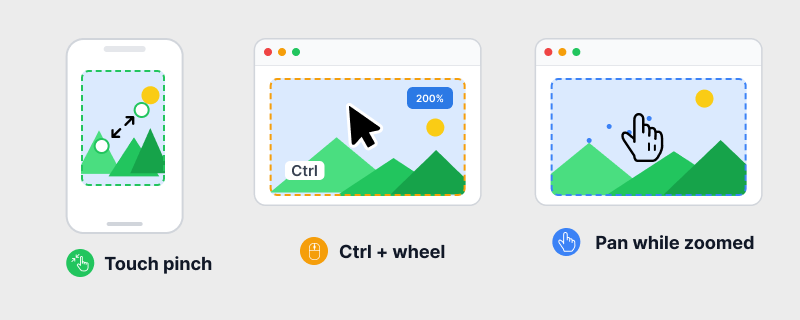
Add pinch and wheel zoom with built-in drag to image viewers, maps, diagrams, and mobile-first layouts in plain HTML and JavaScript. hcg-pinch-zoom is a zero-dependency library. It supports touch pinch (two fingers), Safari trackpad gesture events, touchpad pinch (wheel + ctrlKey), Ctrl + mouse wheel, and drag while zoomed - without React, jQuery, or a heavy zoom toolkit.
On this page you will find a live demo, installation (direct download, npm, CDN), a full options and API reference with copy-paste examples, React usage notes, and styling guidance for image viewers and diagrams.
Table of Contents
What is hcg-pinch-zoom?
hcg-pinch-zoom is a lightweight vanilla JavaScript library for zooming content inside a viewport. Call hcgPinchZoom() on a container element (or add data-hcg-pinch-zoom for auto-init). The first child becomes the transform target unless you pass a content selector. Zoom stays centered on the pinch midpoint or wheel cursor. Built-in drag is enabled when scale is not initialScale (default 100%).
Why use hcg-pinch-zoom?
Most zoom libraries are tied to React or Vue, bundle tiled maps and canvas rendering you do not need, or leave you wiring touch pinch, Ctrl+wheel, focal-point math, and pan-by-drag yourself on top of raw CSS transforms.
hcg-pinch-zoom focuses on one job: pinch, wheel, and drag inside a viewport on plain HTML pages. It is zero-dependency, matches the API style of other HTML Code Generator libraries such as hcg-draggable and hcg-resizable, and suits image viewers, floor plans, product zoom, and mobile-first layouts without a heavy toolkit.
See the zoom library comparison for how hcg-pinch-zoom differs from CSS-only approaches and heavier zoom libraries, and the full capability list for everything included.
Demo
Pinch with two fingers on touch, or hold Ctrl and scroll on desktop. Zoom in, then drag to pan. Use Reset to return to 100% zoom or Disable to toggle gestures. For every option on one page, open the hcg-pinch-zoom demo page.

Scale: 1.00
Comparison Table
How hcg-pinch-zoom compares with common alternatives.
| Feature | hcg-pinch-zoom | CSS transform only | Heavy zoom libraries |
|---|---|---|---|
| Dependencies | None | None | Often jQuery or a framework |
| Touch pinch | Yes | Manual event code | Yes |
| Trackpad / Ctrl+wheel | Yes | Manual | Yes |
| Safari gesture events | Yes | Manual | Varies |
| Pan while zoomed | Built in | Separate drag code | Usually built in |
| Focal-point zoom math | Yes | You implement it | Yes |
| Slider sync API | setScale() | Manual | Varies |
| Data-attribute init | Yes | No | Sometimes |
| Approximate size | One small JS file plus CSS | n/a | Large |
| License / cost | Free, MIT | n/a | Varies |
Choose hcg-pinch-zoom when you want a tiny vanilla helper for image viewers, maps, and diagrams. Use a heavier library when you need tiled imagery, physics, or a full canvas rendering pipeline.
Features
Everything included in the library at a glance:
- Zero dependencies - one small JavaScript file and a companion CSS file.
- Script tag or bundler - works with a plain script tag, CommonJS, or AMD.
- Touch pinch zoom - two-finger gesture on phones and tablets.
- Safari trackpad pinch - via
gesturestart/gesturechange. - Trackpad pinch and Ctrl + wheel - real
ctrlKeydetection onwheel. - Built-in drag while zoomed - pan when
scale !== initialScale. - Focal-point zoom - zoom toward cursor or pinch midpoint.
- Scale limits -
minScale,maxScale, andinitialScale. - Slider sync - drive zoom from HTML range inputs with
setScale(). - Data-attribute init -
data-hcg-pinch-zoomanddata-hcg-*options. - Callbacks -
onZoomandonPanfor UI sync. - Static helpers -
get(),destroy(),reset(),destroyAll(). - Multiple instances - independent viewports on the same page.
- React-friendly - create in
useEffectand calldestroy()on unmount.
Installation
Basic Usage
Install hcg-pinch-zoom, wrap zoomable content in a viewport with overflow: hidden, then init with a data attribute or JavaScript.
Slider and Zoom Controls
Sync an HTML range slider with pinch zoom using setScale(). Use onZoom to update the slider when the user pinches or scrolls. Try it on the Slider zoom demo.
Using with React
Import hcgPinchZoom from the package and create the viewport inside useEffect. Call destroy() in the cleanup function when the component unmounts.
Try the live React demo on StackBlitz
Load hcg-pinch-zoom.css once in your app entry or import it in the component. Use disable() and enable() from props or effects when you need to lock zoom during async work.
Multiple Instances
Create as many zoom viewports on a page as you need. Each call to hcgPinchZoom() returns a fully independent instance with its own scale, position, options, and API.
<link rel="stylesheet" href="hcg-pinch-zoom.css">

<div id="photo-a" class="viewport"><img src="a.jpg" alt="Photo A"></div>
<div id="photo-b" class="viewport"><img src="b.jpg" alt="Photo B"></div>

<script src="hcg-pinch-zoom.js"></script>
<script>
  const zoomA = hcgPinchZoom(document.getElementById('photo-a'), { maxScale: 6 });
  const zoomB = hcgPinchZoom(document.getElementById('photo-b'), { maxScale: 3 });

  zoomA.reset();
  zoomB.getScale();
</script>- Link
hcg-pinch-zoom.cssonce and initialize as many viewports as you need. - Static helpers accept a selector:
hcgPinchZoom.reset('#photo-a'). - Call each instance's
destroy()when removing it from the DOM.
Styling and Customization
All default styles live in hcg-pinch-zoom.css, using plain single-class selectors. Edit that file directly, or override any rule from your own stylesheet loaded after it.
.hcg-pinch-zoom- the viewport (clips overflow, setstouch-action: none).hcg-pinch-zoom-content- the zoomable transform target.hcg-pinch-zoom-draggable/.hcg-pinch-zoom-dragging- grab cursors while zoomed and during drag.hcg-pinch-zoom-disabled- reduced opacity and no pointer events when disabled
.hcg-pinch-zoom { height: 320px; border: 1px solid #e5e7eb; border-radius: 10px; background: #f9fafb; }
.hcg-pinch-zoom-content img { display: block; width: 100%; height: auto; pointer-events: none; }
.hcg-pinch-zoom-disabled { opacity: 0.5; }
Options
Copy-paste examples for each option. See the options types and defaults table for reference values.
Options Reference
Pass these as the second argument to hcgPinchZoom(element, options). Options can be changed at runtime with setOption(name, value).
| Option | Type | Default | Description |
|---|---|---|---|
| content | string | Element | first child | CSS selector or element to transform. Defaults to the first child of the viewport, or the viewport itself if empty. |
| minScale | number | 0.5 | Minimum zoom level (50%). |
| maxScale | number | 4 | Maximum zoom level (400%). |
| initialScale | number | 1 | Starting zoom and the scale at which drag is disabled. Position resets when scale equals this value. |
| trackpadSensitivity | number | 0.01 | Multiplier for trackpad pinch (wheel with ctrlKey). |
| ctrlWheelSensitivity | number | 0.003 | Multiplier for Ctrl + mouse wheel zoom. |
| maxWheelStep | number | 40 | Maximum scale change per wheel event. |
| wheel | boolean | true | Enable trackpad pinch and Ctrl + wheel zoom. |
| pinch | boolean | true | Enable touch pinch and Safari gesture events. |
| drag | boolean | true | Enable panning while zoomed. |
| disabled | boolean | false | Start disabled or toggle with disable() / enable(). |
| onZoom | function | - | Called when scale changes. Receives { scale, x, y, target }. |
| onPan | function | - | Called while dragging zoomed content. Receives { scale, x, y, target }. |
API Reference
hcgPinchZoom(element, options) returns an instance with these methods. The factory also exposes hcgPinchZoom.version, get(), destroy(), reset(), init(), and destroyAll().
| Method | Returns | Description |
|---|---|---|
| getScale() | number | Current scale value. |
| setScale(scale, focal?) | instance | Apply zoom and update the DOM. Optional focal { clientX, clientY }. |
| getTransform() | object | Current { x, y, scale }. |
| setTransform({ x, y, scale }) | instance | Set translate and scale together. |
| reset() | instance | Reset to initialScale and origin (0, 0). |
| enable() | instance | Turn gestures on. |
| disable() | instance | Turn gestures off and add .hcg-pinch-zoom-disabled. |
| setOption(name, value) | instance | Update any option at runtime. |
| destroy() | instance | Remove listeners, classes, and the instance reference. |
| hcgPinchZoom.get(target) | instance | null | Static helper to retrieve an instance by element or selector. |
| hcgPinchZoom.destroy(target) | boolean | Static helper to destroy an instance. |
| hcgPinchZoom.reset(target) | boolean | Static helper to reset an instance. |
| hcgPinchZoom.init(root?) | void | Scan for data-hcg-pinch-zoom elements. |
| hcgPinchZoom.destroyAll() | void | Destroy every instance on the page. |
Data attributes
Every option that takes a simple value can be set in HTML. Mark the viewport with data-hcg-pinch-zoom; elements are initialized automatically on page load. Boolean and numeric options use data-hcg-* attributes as shown below.
| Attribute | Maps to | Example |
|---|---|---|
data-hcg-pinch-zoom | auto-init | data-hcg-pinch-zoom |
data-hcg-content | content | data-hcg-content="img" |
data-hcg-min-scale | minScale | data-hcg-min-scale="0.5" |
data-hcg-max-scale | maxScale | data-hcg-max-scale="4" |
data-hcg-initial-scale | initialScale | data-hcg-initial-scale="1" |
data-hcg-wheel | wheel | data-hcg-wheel="false" |
data-hcg-pinch | pinch | data-hcg-pinch="false" |
data-hcg-drag | drag | data-hcg-drag="false" |
data-hcg-disabled | disabled | data-hcg-disabled="true" |
<div
  data-hcg-pinch-zoom
  data-hcg-min-scale="0.5"
  data-hcg-max-scale="4"
  data-hcg-drag="true">
  <img src="photo.jpg" alt="Photo">
</div>
Callbacks
The library reports zoom and pan changes through onZoom and onPan options rather than custom DOM events. Pass them when you create the instance, or update them later with setOption().
Browser Support
hcg-pinch-zoom works in modern browsers that support touch events, pointer events, wheel listeners, and Safari gesture events where available.
| Browser | Supported |
|---|---|
| Google Chrome | Yes |
| Mozilla Firefox | Yes |
| Microsoft Edge | Yes |
| Safari / iOS Safari | Yes |
| Mobile browsers | Yes (touch pinch and pan) |
License
Released under the MIT License. Free for personal and commercial use. Copyright HTML Code Generator.
Frequently asked questions
Why does wheel zoom require Ctrl?
Browsers use Ctrl+wheel (or trackpad pinch) for page zoom. hcg-pinch-zoom listens for wheel events with ctrlKey so touchpad pinch and Ctrl+scroll zoom the content instead of the whole page. The handler calls preventDefault() to avoid browser zoom fighting content zoom.
How do I reset zoom without storing the instance?
Call hcgPinchZoom.reset('#viewport') or pass an element directly. It returns true when an instance was found. You can also use hcgPinchZoom.get(element)?.reset().
Does hcg-pinch-zoom work on iOS Safari?
Yes. Touch pinch uses touch events. Safari trackpad pinch uses gesturestart / gesturechange. The viewport sets touch-action: none so the browser does not scroll the page while you pinch or drag inside the zoom area.
Does hcg-pinch-zoom have any dependencies?
No. hcg-pinch-zoom is plain vanilla JavaScript with zero dependencies. Include hcg-pinch-zoom.js and hcg-pinch-zoom.css and you are ready to go.
Can I put clickable buttons or links inside zoomable content?
Yes. The library does not set pointer-events: none on content by default; only the disabled state (.hcg-pinch-zoom-disabled) blocks interaction. Demo styles often set pointer-events: none on images to prevent native image drag - remove that rule on elements that should be clickable.
button, a, input, and elements with data-hcg-pinch-zoom-interactive stay clickable while zoomed; the library skips pan on those targets. For custom clickable regions on plain div or span elements, add data-hcg-pinch-zoom-interactive or set drag: false for zoom-only mode.
Why does HTML text look blurry when zoomed?
hcg-pinch-zoom zooms with CSS transform: scale(). The default stylesheet sets will-change: transform on .hcg-pinch-zoom-content to keep pan and zoom smooth for photos, maps, and canvas. In Chrome and Edge that GPU layer hint can make HTML text look soft after zoom because the browser scales a cached bitmap instead of re-rasterizing glyphs. Firefox often stays sharp.
This is browser rendering behavior, not incorrect zoom math. Resizing the window forces a repaint and text may look sharp again. For HTML-heavy content, override in your CSS:
.hcg-pinch-zoom-content {
  will-change: auto;
}